Create email notification
Here you can find how to customize email notifications in your service desk.
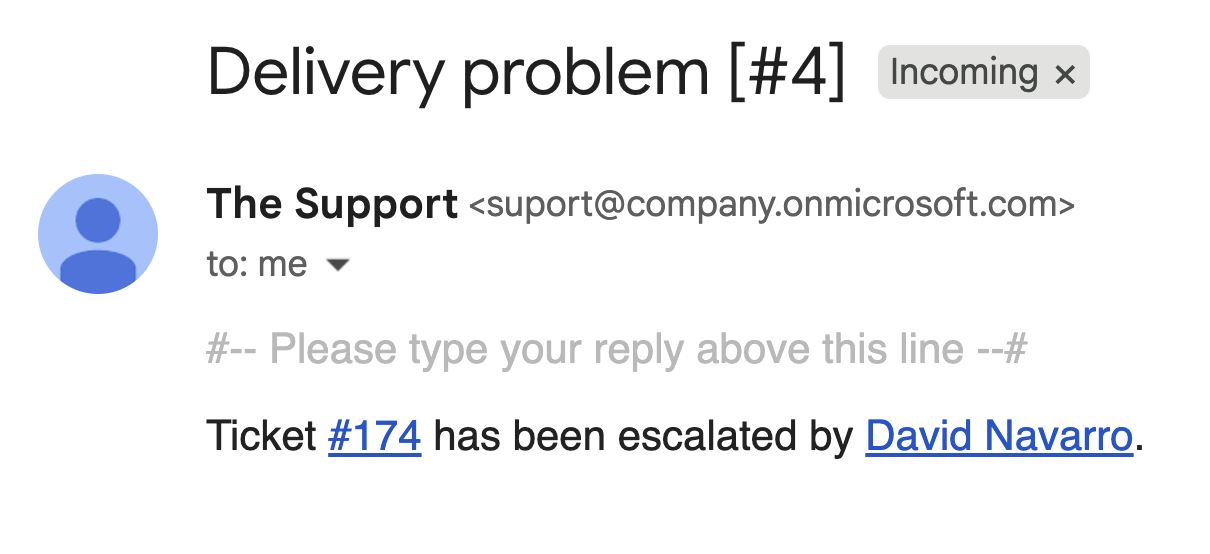
You can create a new trigger that runs when a help desk ticket is updated in some specific way. For example, you can configure a trigger which will notify a specific person when a ticket priority is changed to urgent.
This is an example of such notification:
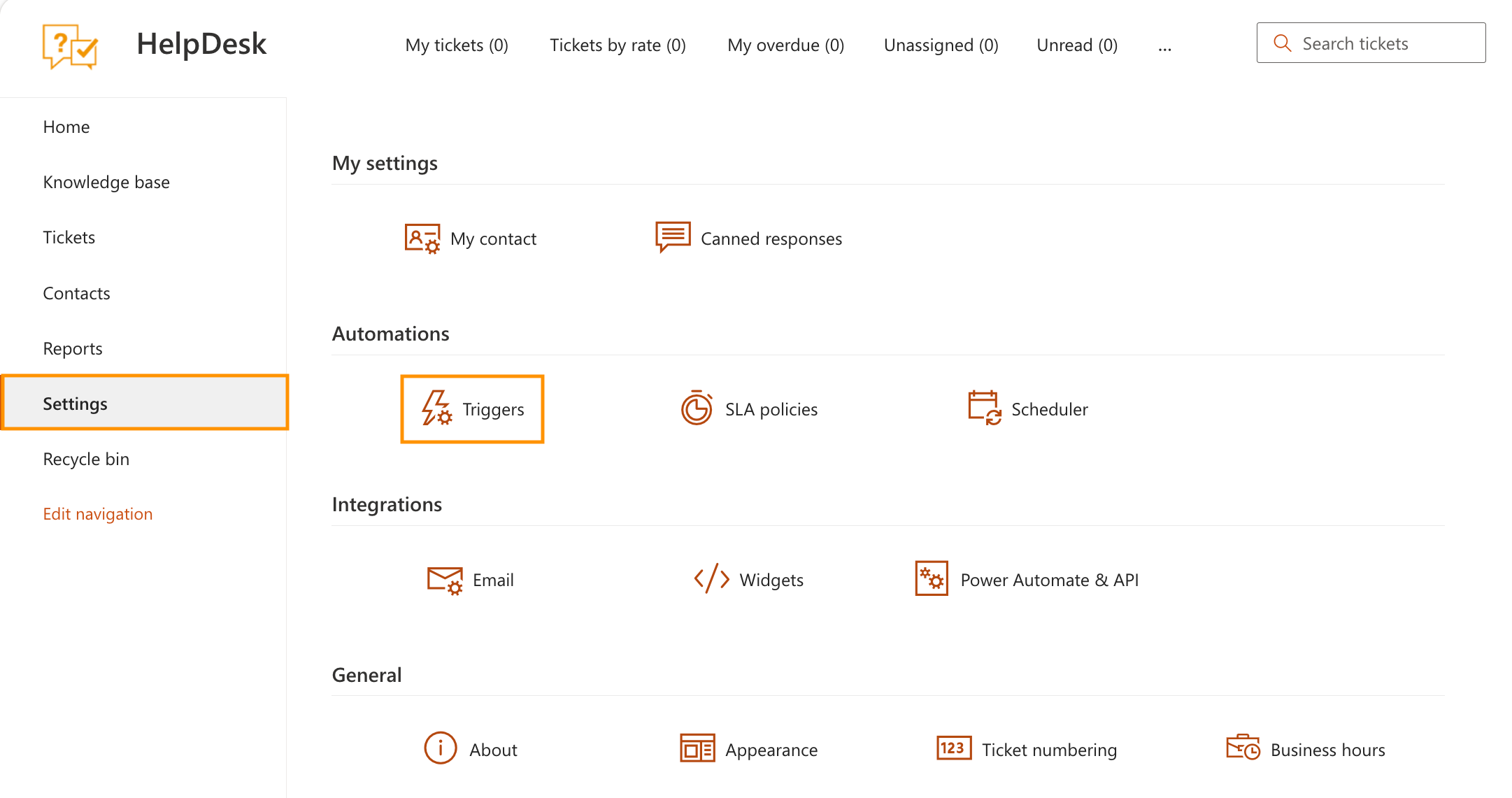
Navigate to the Settings page using the left navbar. Go to the Triggers tab and create a new item.
The Execute when field specifies the event that starts the trigger. If you need notifications to be sent when a ticket has been changed, choose Ticket has been changed in the dropdown menu.
The Conditions field defines the conditions which should be met in order for the action to be performed.
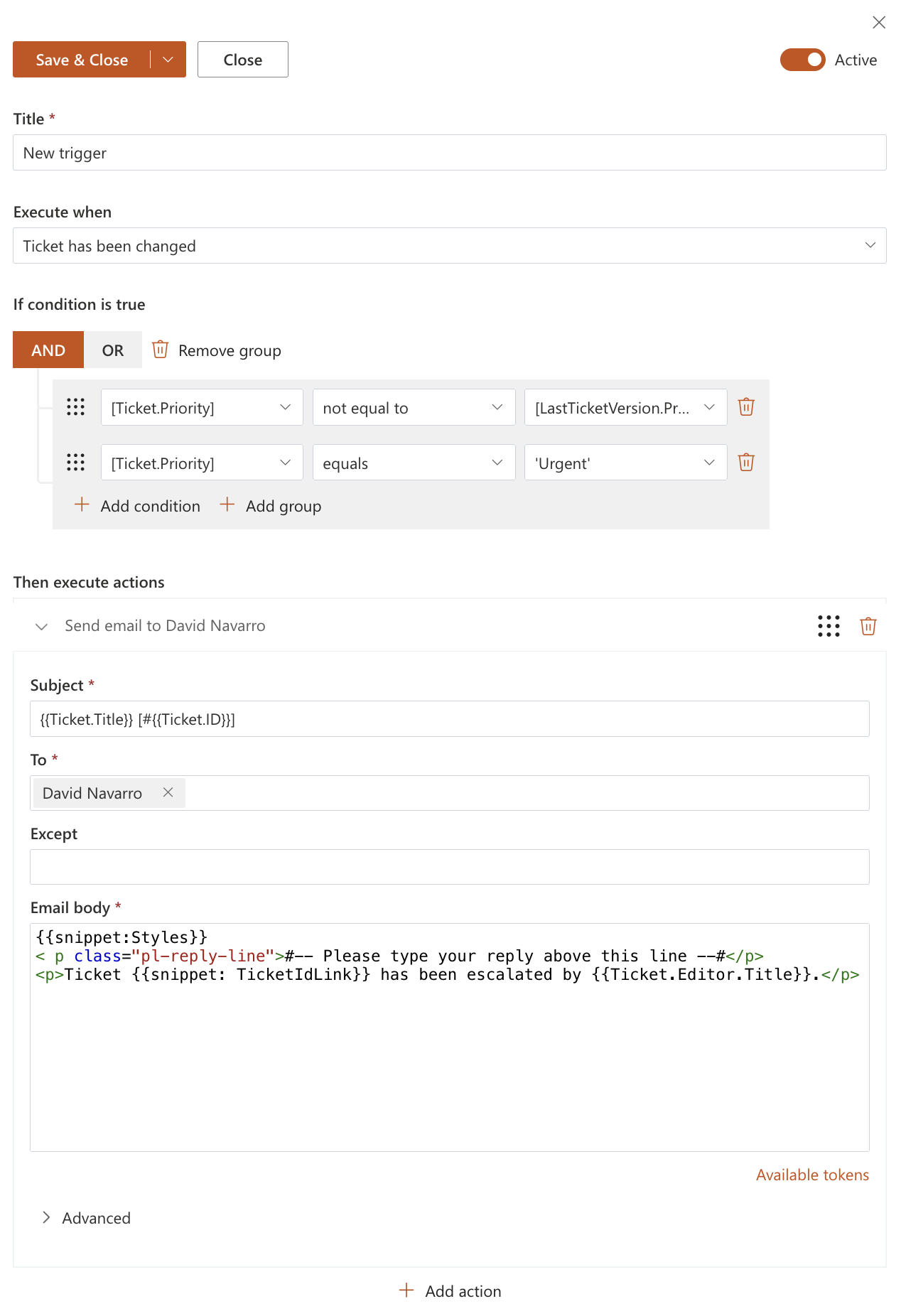
The example above compares two states to determine if the trigger should fire:
Checks that the current Priority does not equal the original Priority (ensuring that the priority field was changed).
Checks that the current Priority equals Urgent.
You can learn more in our guide on building advanced conditions.
After setting up conditions, add a new action and select Send email. You can choose recipients who will receive notifications regarding the ticket’s priority change.
Inside this action, specify the Subject and Email body. You can use tokens to dynamically insert information about the ticket title, its ID, and the person who escalated it.
Save the trigger, and recipients will start receiving email notifications like the one shown in the first screenshot.